What's the best PDF compressor in 2026? An honest review
- Laetitia Chaumeron
- Pdf, How to, Safer pdf vs
- January 15, 2026
PDF compression has become an essential task for individuals and businesses alike, enabling efficient sharing and storage of documents without compromising on quality. With several PDF compression tools available in the market, choosing the right one can be daunting.
What is the best PDF compressor in 2026?
TL;DR: SaferPDF is the best PDF compressor for 2026 if you prioritise privacy and security. For feature-rich options with server storage, Adobe and SmallPDF are strong alternatives, but they require uploading your files which means you could also put your content privacy at risk.
Quick comparison: Top PDF compressors
| Compressor | Best For | Privacy | Price | Rating |
|---|---|---|---|---|
| SaferPDF | Privacy & Security | ⭐⭐⭐⭐⭐ Browser-only | Free / One-time license | ⭐⭐⭐⭐⭐ |
| Adobe Acrobat | Professional Use | ⭐⭐⭐ Server upload | $31.99/mo | ⭐⭐⭐⭐ |
| SmallPDF | Ease of Use | ⭐⭐⭐ Server upload | Free/$15/mo | ⭐⭐⭐⭐ |
| ILovePDF | Multi-tool Suite | ⭐⭐⭐ Server upload | Free/$7/mo | ⭐⭐⭐ |
| PDFGear | Free Features | ⭐⭐ Server upload | Free | ⭐⭐⭐ |
Top-rated PDF compressor comparison
In this honest review, we’ll compare the most popular PDF compressors – Adobe, SmallPDF, ILovePDF, PDFGear, PDF2Go, and SaferPDF – to help you find the best tool for your needs.
1. SaferPDF - Best for Privacy & Security ⭐⭐⭐⭐⭐

Best for: Privacy-conscious users, handling sensitive documents, offline work
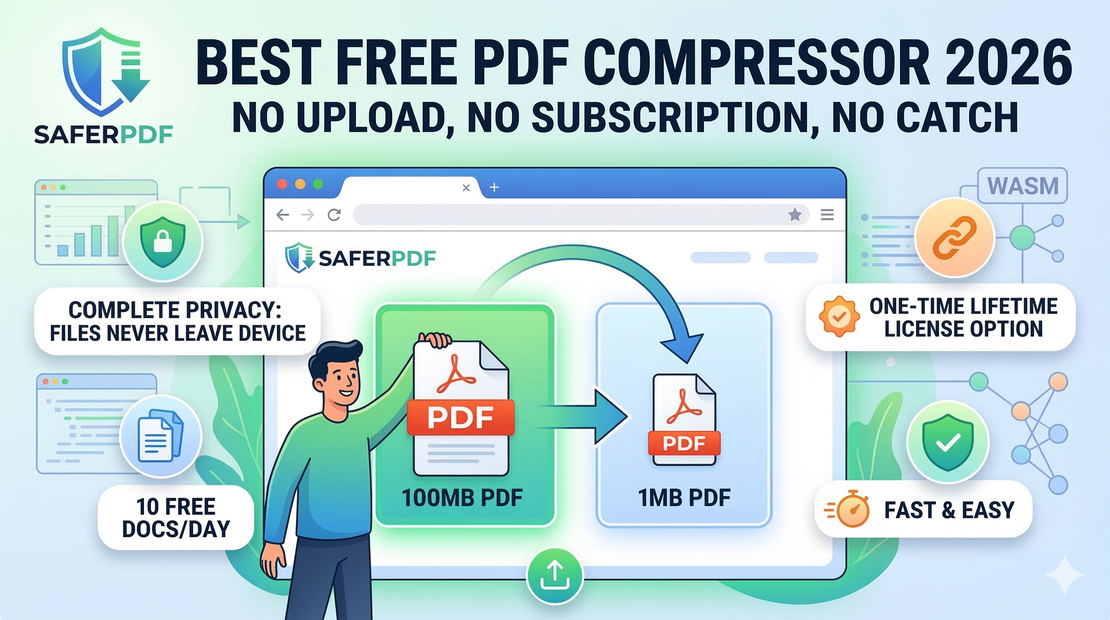
What makes it the safest PDF compressor: Unlike all other compressors on this list, SaferPDF processes files entirely in your browser. Your PDFs never leave your device.
Key Features
- ✅ 100% browser-based - Files never uploaded to servers
- ✅ Works offline after first use - WASM files cached for offline compression
- ✅ Unlimited file size - No restrictions
- ✅ Batch processing - Compress multiple PDFs at once
- ✅ Quality preservation - 50-90% compression with minimal quality loss, incl. image quality
Pros
- ✅ Zero data breach risk - Files never leave your computer
- ✅ No subscription - 10 free docs/day; one-time lifetime license for unlimited
- ✅ Privacy guaranteed - No logging, tracking, or storage
- ✅ Fast & efficient - No upload/download time wasted
- ✅ Easy to use - Simple drag-and-drop interface
Cons
- ⚠️ PDF-only - Doesn’t compress images, videos, or other formats
- ⚠️ Fewer features - Focuses on compression and merging, not editing yet
Pricing
Free tier: 10 free documents, no file size limits
Pro: One-time payment for lifetime access (unlimited documents, batch processing, priority support)
Verdict: ⭐⭐⭐⭐⭐ Best choice if privacy matters. The only compressor that guarantees your files never leave your device.
2. Adobe Acrobat - Best for Professional Use ⭐⭐⭐⭐

Key Features
✅ Integration with Adobe Acrobat, a widely used PDF editing software
✅ Offers both online and desktop versions
✅ Provides various compression options, including standard, high, and custom settings
Pros
✅ Trusted brand with a long-standing reputation in the industry
✅ Seamless integration with other Adobe products
✅ Advanced compression options for customising file size reduction
Cons
⚠️ Desktop version requires a subscription to Adobe Acrobat
⚠️ Limited free features compared to other online compressors
Pricing
- ⚠️ Subscription to Adobe Acrobat DC, which includes compression features, starts at $31.99 AUD per month ($383.88 AUD per year)
3. SmallPDF

Key Features
✅ Simple and user-friendly interface
✅ Offers a range of PDF tools, including compression, conversion, and editing
✅ Supports batch processing for compressing multiple files simultaneously
Pros
✅ Free to use with basic features
✅ No installation required; works directly in your web browser
✅ Integrates with popular cloud storage services like Google Drive and Dropbox
Cons
⚠️ Limited compression options compared to other tools
⚠️ File size restrictions for free users
Pricing
Free plan with limited features
Paid plans start at $15 AUD per month when billed annually ($180 AUD annually)
4. IlovePDF

Key Features
✅ Comprehensive suite of PDF tools, including compression, merging, splitting, and more
✅ Supports multiple languages
✅ Allows users to preview compressed files before downloading
Pros
✅ Offers a free tier with access to essential features
✅ Fast and efficient compression process
✅ Integration with Google Drive, Dropbox, and OneDrive for seamless file management
Cons
⚠️ Ad-supported free version may be intrusive for some users
⚠️ Some advanced features require a premium subscription
Pricing
Free plan with basic features
Premium plans start at $7 AUD per month when billed annually ($84 AUD annually)
5. PDFGear

Key Features
✅ Focuses solely on PDF compression and optimisation
✅ Offers both online and desktop versions
✅ Provides customisable compression settings for balancing file size and quality
Pros
✅ Ensures specialised expertise in the field
✅ Desktop version offers offline functionality without internet connectivity
✅ Advanced compression options for fine-tuning results
Cons
⚠️ Limited additional features compared to all-in-one PDF tools
⚠️ Desktop version may require a one-time purchase
Pricing:
- Online version is free with pricing available upon request
6. PDF2Go

Key Features
✅ Simple and intuitive interface suitable for beginners
✅ Offers a variety of PDF tools, including compression, conversion, and editing
✅ Supports cloud storage integration for convenient file management
Pros
✅ Free to use with basic features
✅ No registration required for quick compression
✅ Provides instant download links after compression
Cons
⚠️ Limited customisation options for compression settings
⚠️ Ad-supported free version may interrupt the user experience
Pricing
Free plan with basic features
Monthly plans start at $29 USD per month ($348 USD per year)
7. PDF Compressor

Key Features
✅ Focuses on PDF compression and format conversion
✅ Offers both online and desktop versions
✅ Provides batch processing capabilities for compressing multiple files at once (up to 20 files)
Pros
✅ Simple and straightforward interface for easy navigation
✅ Supports various compression levels for different requirements
✅ Desktop version allows offline use without internet connectivity
Cons
⚠️ Desktop version may require a one-time purchase
⚠️ Keeps user data for one hour before deleting it
⚠️ Limited additional features compared to comprehensive PDF tools
Pricing
- Online version offers a free version with pricing available upon request
Final verdict: Which PDF compressor should you choose?
The best PDF compressor for you depends on your priorities:
Choose SaferPDF if you want:
- ✅ Maximum privacy - Files never uploaded to servers
- ✅ Zero data breach risk - Browser-only processing
- ✅ Generous free tier - 10 documents/day, no file size limits
- ✅ Offline capability - Works without internet after first compression
- ✅ Lifetime access - One-time payment option
Best for: Sensitive documents, privacy-conscious users, offline work
Choose Adobe Acrobat if you want:
- ✅ Professional-grade tools
- ✅ Advanced PDF editing features
- ✅ Enterprise integration
Best for: Businesses with Adobe ecosystem, professional use Note: Requires subscription and uploads files to Adobe servers
Choose SmallPDF if you want:
- ✅ Easy-to-use interface
- ✅ Multiple PDF tools in one
- ✅ Good compression quality
Best for: Occasional users who don’t mind uploading files Note: Server-based, requires upload, freemium model
Choose ILovePDF if you want:
- ✅ Budget-friendly option
- ✅ Multi-tool PDF suite
- ✅ Generous free tier
Best for: Budget-conscious users needing multiple PDF tools Note: Server-based with file upload required
Our recommendation for 2026
For 95% of users, SaferPDF is the best choice because:
- Privacy is guaranteed - Your files literally never leave your computer
- It’s genuinely affordable - 10 free documents/day, and a one-time lifetime license for unlimited use — no recurring fees ever
- It’s safer - Zero risk of data breaches since files aren’t uploaded
- It works offline - After your first compression, WASM files are cached for offline use
- Quality is excellent - 50-90% compression with minimal visible loss
The only reason to choose alternatives is if you need advanced PDF editing features or are already locked into an ecosystem. For pure compression with maximum privacy, SaferPDF wins hands down.
Frequently asked questions
Q: Which is the best free PDF compressor? A: SaferPDF offers 10 free compressions per day with no file size limits and no registration. Need more? A one-time lifetime license gives you unlimited use forever — no monthly subscription, no recurring fees.
Q: What’s the safest PDF compressor? A: SaferPDF is the safest because it processes files entirely in your browser. Your PDFs never touch a server, eliminating data breach risks entirely.
Q: Which PDF compressor has the best quality? A: All modern compressors produce similar quality results. SaferPDF offers three compression levels (Recommended, High Quality, Extreme) so you can choose your quality/size trade-off.
Q: Can I compress PDFs offline? A: Yes, SaferPDF works offline after your first compression. The first time you compress a PDF, the compression engine (WASM files) downloads and caches in your browser. After that, you can compress PDFs completely offline without internet.
Ready to try the safest PDF compressor? Start with SaferPDF today - no registration, no uploads, completely free.